Mostrando entradas con la etiqueta linux beta. Mostrar todas las entradas

19 noviembre 2021

Quick way to install Firefox on linux beta - chromebook

There is a firefox version you can install quickly if you don't wanna waste time with codes and file managers, or you are just beginning in the linux world.

These steps are also useful for Debian and Ubuntu. 

It's firefox ESR (Extended Support Release) version, which can be installed directly from debian repositories in a jiffy.

According to mozilla support, Firefox ESR does not come with the latest features but it has the latest security and stability fixes.

Steps to install, type and enter on terminal:

sudo apt update

sudo apt install firefox-esr

The version at debian repositories is a little old: firefox esr 78.15. 

However it is possible to download a more recent .tar.bz2 version (91.3) from mozilla website 

The steps to install firefox esr .tar.bz2 application are the same as firefox stable version: How to install firefox on linux beta.

How to remove firefox completely on linux beta - chromebook

The easiest way to uninstall tar.bz2 applications on linux is manually. 

These steps are also useful for Debian and Ubuntu. 

Steps to remove firefox:

1. In order to move "firefox" folder inside /opt to Downloads folder and delete it there, type this on terminal:

sudo mv /opt/firefox ~/Downloads

Now we can delete easily firefox folder in Downloads folder.

Note: we do this as /opt is a protected with root folder.


2. Enable show hidden files on linux files folder:

Inside ".cache" folder, delete  "mozilla" folder.


3. Move .desktop file from user/share/applications folder to Downloads folder

sudo mv /usr/share/applications/firefox.desktop ~/Downloads

Now it can be deleted easily.


4. Inside "Linux files", delete ".mozilla" folder. 

If you can't, use nautilus file manager. Move to trash and then empty trash.


18 noviembre 2021

How to install firefox on linux beta - Chromebook

These steps are for Linux Beta (chromebook), Debian or Ubuntu. This article is referred to firefox stable version.

Before installing anything, let's do three things:

FIRST:

1. Save a firefox icon image .png (in icons folder). 

You can download the firefox icon you like (png format) from the internet, or choose one from default folder, and save it in icons folder. 

In order to do this (use a file manager like nautilus) you can copy the png file from Downloads folder and paste on icons folder. Path: /opt/firefox/browser/chrome/icons/default

2. Create a firefox.desktop file:

The .desktop file is a txt file with .desktop extension. 

We must put this CODE inside:


[Desktop Entry]

Name=Firefox Stable

Comment=Web Browser

Exec=/opt/firefox/firefox %u

Terminal=false

Type=Application

Icon=/opt/firefox/browser/chrome/icons/default/ICONNAME.png

Categories=Network;WebBrowser;

MimeType=text/html;text/xml;application/xhtml+xml;application/xml;application/vnd.mozilla.xul+xml;application/rss+xml;application/rdf+xml;image/gif;image/jpeg;image/png;x-scheme-handler/http;x-scheme-handler/https;

StartupNotify=true


Now pay attention to this part of the code... 

exec - the folder from where firefox is executed. 

icon - the folder where we put the firefox icon. Path: /opt/firefox/browser/chrome/icons/default 

Do not forget to change the extension of the .txt file to .desktop

3. Move the firefox.desktop file to user folder.

From Downloads to User - share - applications folder. On terminal, type and press enter:

sudo mv /home/USERNAME/Downloads/firefox.desktop /usr/share/applications

STEPS TO INSTALL FIREFOX

 1. Download firefox from official site. For a modern Chromebook select Linux 64 bits, and save in Downloads folder (inside Linux files folder).

Example: firefox-94.0.1.tar.bz2

2. On terminal, type and press enter:

cd Downloads  

3. Now let's extract the tar.bz2 file:

tar -xf (YOUR FILE NAME.tar.gz)

Example:

tar -xf firefox-94.0.1.tar.bz2

Now if we check downloads folder we'll see that a firefox folder has been created. 

4. Move that firefox folder from Downloads to /opt folder. Just copy & paste:

sudo mv ~/Downloads/firefox /opt

5.Move the .desktop file from Downloads to /usr/share/applications. Just copy & paste:

sudo mv ~/Downloads/firefox.desktop /usr/share/applications

6. On terminal, type and press enter:

cd /opt

7. Type and press enter:

cd firefox 

8. Type and press enter to launch firefox:

./firefox  

You can now find the firefox desktop icon shortcut in the linux apps box on chromebook desktop. 

17 octubre 2021

How to install Open Office on Linux and Chromebook

These steps are for Linux Beta (chromebook), Debian or Ubuntu. 

Is it necessary java? If your are using OpenOffice for common tasks it's not necessary. According to openoffice site java environment is "mainly required for the HSQLDB database engine" - OO Base. 

In case you need to install java environment... On terminal copy & paste:

sudo apt-get install default-jre

Steps to install OpenOffice:

1. Download openoffice from official site. For a modern Chromebook select Linux 64 bits DEB, select language and save in Downloads folder (inside Linux files folder).

Example: Apache_OpenOffice_4.1.11_Linux_x86-64_install-deb_es.tar.gz

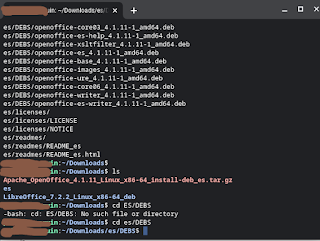
2. On terminal, type and press enter:

cd Downloads  

3. Now extract the tar. gz file:

tar  xvf (YOUR FILE NAME. tar.gz) 

Example:

tar xvf Apache_OpenOffice_4.1.11_Linux_x86-64_install-deb_es.tar.gz


4. Type and enter:

ls  

cd es/DEBS  (Replace es for your language) 

sudo dpkg -i  *.deb

6. Type and enter to start installation:

cd desktop-integration/

sudo dpkg -i *deb

7. That's all... Now check up oo icons on your desktop. 


Notes about codes:

cd - to enter a folder. 

ls - to view a folder content. 

dpkg -i *deb - to unpack and install all. deb files

10 octubre 2021

How to install or uninstall spotify on chromebook linux beta

This article is for Linux Debian, which is the one (linux beta) that can be enabled on chrome os, chromebooks system. To install the desktop version of Spotify on a chromebook (or debian) we have to do it through the linux beta terminal (which must has been activated previously). 

HOW TO INSTALL SPOTIFY:

We open the Linux Terminal app and write:

sudo apt-get install spotify-client 

Reply we do want to install by typing: y

Once installed, it is very likely that when you open Spotify, it will close instantly. In linux the app usually crashes. 

The trick to open Spotify  is:

Open terminal and type:

spotify --no-zygote

Then automatically Spotify will open. 

HOW TO UNINSTALL SPOTIFY:

sudo apt-get --purge remove spotify-client

And follow instructions. 

16 julio 2021

Cómo instalar o desinstalar spotify en chromebook linux beta

Este artículo es para Linux Debian, que es la que se puede habilitar (linux beta) en el sistema chrome os de los chromebooks. Para instalar la versión de escritorio de Spotify en un chromebook tenemos q hacerlo a través de la terminal de linux beta (q debemos tener activado). 

CÓMO INSTALAR SPOTIFY:

Abrimos la app Terminal de linux y escribimos:

sudo apt-get install spotify-client 

Responder que sí queremos instalar escribiendo: y

Una vez instalada es muy probable que al abrir Spotify, se nos cierre al instante. En linux la app suele hacer crash. 

El truco para abrir Spotify es:

Abrir la terminal y escribir:

spotify --no-zygote

Entonces, automáticamente, Spotify se abrirá. 

CÓMO DESINSTALAR SPOTIFY:

sudo apt-get --purge remove spotify-client

Y seguir instrucciones. 

Quick way to install Firefox on linux beta - chromebook

There is a firefox version you can install quickly if you don't wanna waste time with codes and file managers, or you are just beginning...